Creative projects · Practical guide
Make colorful music videos with AI: lessons from the Hey Bear format
Plan an original 30-second animation with simple characters, gentle motion and music, using AI images, short video clips and a timeline editor.
In this guide
- The useful starting point
- 1. Choose a small, practical toolchain
- 2. Write the creative brief
- 3. Make a storyboard before spending video credits
- 4. Approve the characters as still images
- 5. Animate one approved frame
- 6. Add music you can actually use
- 7. Assemble, export and inspect
- Sources and further reading
The useful starting point
Create a small original cast, storyboard a short sequence, animate one approved image at a time, then edit and review the whole video. Keep the characters, music and identity your own.
If you enjoy Hey Bear’s colorful characters, simple movement and musical worlds, those broad filmmaking ingredients can be a starting point for your own project. Study how a small cast, readable silhouettes and repeated movement create a coherent scene. Develop your own character designs, soundtrack, title and visual identity instead of reusing its characters or footage.
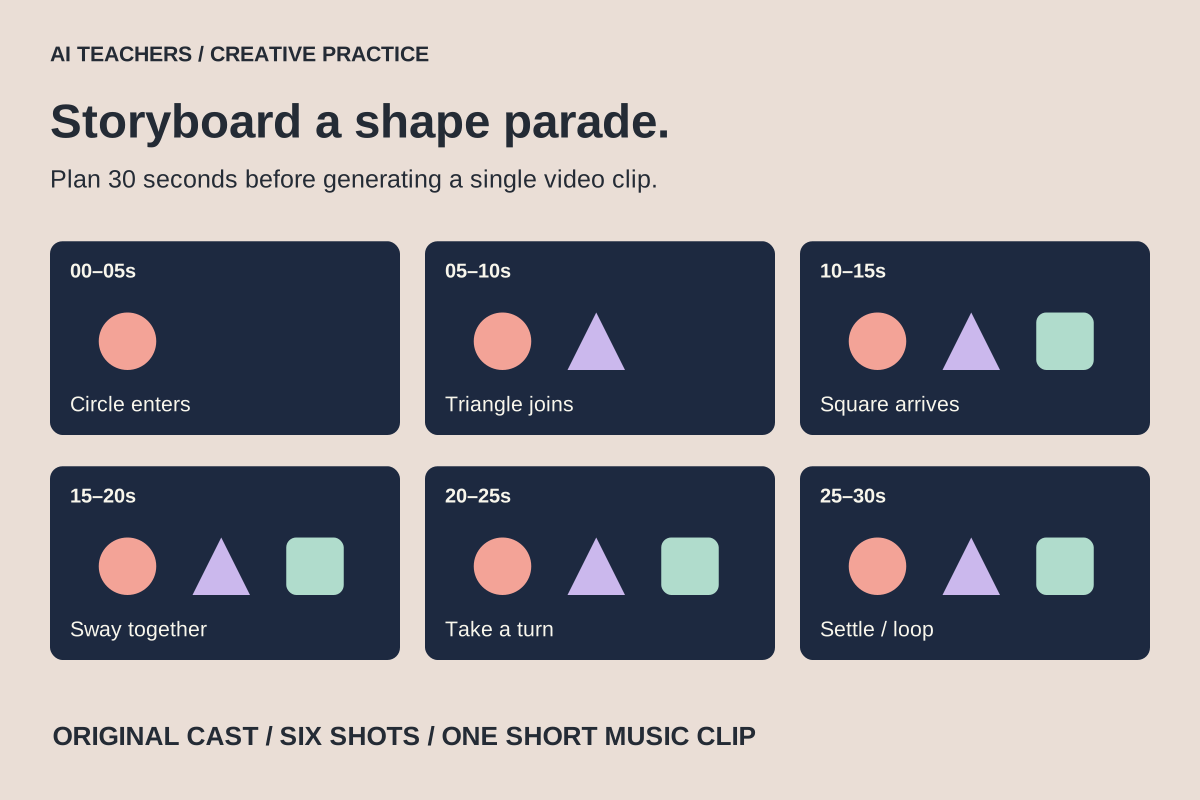
This activity teaches production skills to adults and older students: briefing, visual consistency, storyboarding, animation, sound and review. It does not make claims about infant development or therapeutic benefits. Our original example is Shape Parade, a 30-second sequence starring a coral circle, a lilac triangle and a mint square.
1. Choose a small, practical toolchain
| Job | Suggested tool | What to check |
|---|---|---|
| Design a reference image | Adobe Firefly or another image generator you are eligible to use | Aspect ratio, download format and terms for your intended use |
| Animate a shot | Firefly image-to-video | Available model, duration, credits and first-frame support |
| Arrange the finished piece | Canva video editor or a familiar timeline editor | Trimming, audio, export options and any paid assets |
This is one possible workflow, not a requirement to buy three subscriptions. Check current access and credit costs before generating. Set a limit, such as two visual directions and three motion attempts per shot. A reference image animated with ordinary editor motion is a useful fallback if generated video is unavailable or inconsistent.
2. Write the creative brief
Create a brief for Shape Parade, an original 30-second animated music clip.
Cast: coral circle with two small feet; lilac triangle with rounded corners;
mint square with short arms. Keep the same proportions throughout.
Mood: cheerful and gentle. Background: uncluttered deep navy.
Composition: wide 16:9 with space around each character.
Motion: slow sways, small bounces and simple entrances.
No brand characters, logos, text, flashing or sudden camera moves.
Give me six shot descriptions. Do not invent developmental claims.
Choose one color palette and a fixed camera. A small cast is easier to keep consistent than many unrelated characters. Save the brief, prompts and approved references in a project folder before moving into video.
3. Make a storyboard before spending video credits
| Time | Picture | Motion and sound |
|---|---|---|
| 0–5 sec | Circle alone, centered | A small sway as the music begins |
| 5–10 sec | Triangle joins with space between them | A slow slide into position |
| 10–15 sec | Square completes the group | One gentle bounce, then settle |
| 15–20 sec | All three remain in the same wide frame | Sway together with the beat |
| 20–25 sec | One character takes a small turn | The others wait; no camera movement |
| 25–30 sec | The group returns to its starting pose | Settle and fade the music, or prepare a clean loop |
These are editing targets, not a promise that a model will output exactly five usable seconds. Generate the duration your chosen tool supports, then trim to fit. For a loop, compare the final pose and lighting with the first frame; a text request alone does not guarantee a seamless join.
4. Approve the characters as still images
Generate a reference frame showing the three original shapes together. Check that each has a distinct silhouette and readable expression. Reject versions with stray limbs, extra faces or busy backgrounds. Keep the approved image as the visual reference for subsequent shots.
Original 2D cut-paper illustration, wide composition: a coral circle
with two small feet, a rounded lilac triangle, and a mint square
with short arms, evenly spaced on a plain deep-navy background.
Simple friendly faces, clean edges, consistent soft lighting.
No words, logos or existing characters. Leave generous empty space.
Keep a small character sheet listing colors, shapes and proportions. When a later image drifts, correct that still frame before animating it. Do not assume repeated prompts will preserve a character exactly.
5. Animate one approved frame
In Firefly, open Generate video, choose a model that supports your intended image workflow, and upload the approved image as the first frame. Set the available aspect ratio and duration, then write a motion-focused prompt. Adobe’s guide explains first and last frame controls and model-dependent options. Save the result and review it before generating the next shot.
Locked wide camera. The three original shape characters gently sway
from side to side in place. Preserve their colors, faces, proportions
and spacing. Small smooth motion, steady background and lighting.
No new characters, no cuts, no zoom, no flashing. End in a neutral pose.
Watch the entire clip, then inspect the joins and any suspicious frames. Common failures include changing faces, a wobbling background and new objects appearing. Reduce motion complexity or regenerate the affected shot. If consistency remains poor, use the approved still image with simple motion in your editor; that is a valid creative choice.
6. Add music you can actually use
Choose a track you created, licensed for the intended publication, or generated under terms that allow your use. Keep a record of the source and license. Do not lift music from a reference video. AI generation alone does not settle every usage question, and a subscription label is not a substitute for checking the particular asset.
A useful creative brief for a music tool or collaborator is: “A short cheerful instrumental with a steady beat, soft percussion and a simple repeating melody; no vocals, abrupt changes or imitation of a named track.” Trim the approved music to the storyboard and fade its ending. Listen through headphones and ordinary speakers for jumps in volume or an abrupt loop join.
7. Assemble, export and inspect
Create a 16:9 video project in Canva or your chosen editor. Upload the approved clips and music. Arrange the six storyboard sections, trim clips, adjust audio and use restrained transitions. Canva supports MP4 video download; check the export panel for your design’s available options and any premium assets before downloading.
- The same characters keep their shapes and faces throughout.
- Movement is smooth; there are no flashes or sudden visual jumps.
- Audio starts and ends cleanly without startling changes in level.
- The final exported file plays from start to finish on another device.
- A loop, if intended, has been checked at both the picture and audio join.
- The title, description, assets and music credits accurately describe your own work.
Keep a short production note: what you designed, what AI generated, what you changed and which assets you used. Describe the output as an original AI-assisted animation. Review the destination platform’s current audience and disclosure settings before publishing. Finish one polished 30-second clip before attempting an hour-long compilation.
For another creative experiment, try making a small game with AI or explore our creative learning path.
Sources and further reading
- Hey Bear: background and creative format
- Adobe: generate video using images
- Canva: download a design as video
- Adobe Firefly
Sources checked October 29, 2026. Review the linked publisher information for current details.
Put one idea to work
Use one lesson in a small project, explain what you learned, and practice again without relying on the answer.
Try the free workshop →Explore more from AI TeachersGet the free AI at Work Starter Kit →Keep practicing
 Creative projects · Practical guide
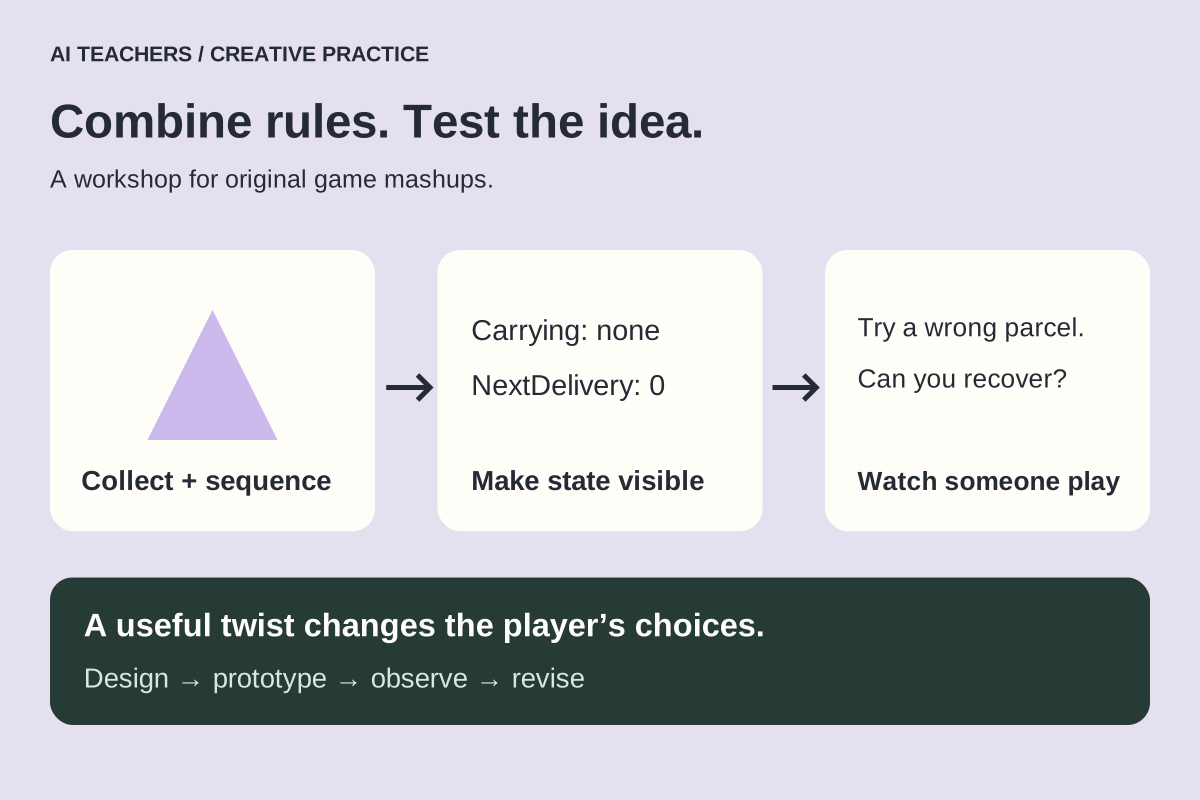
Game mashups with AI: turn two mechanics into one playable idea
A practical workshop for combining game rules, building a small prototype and using playtests to decide what belongs.
October 29, 2026 · 7 min read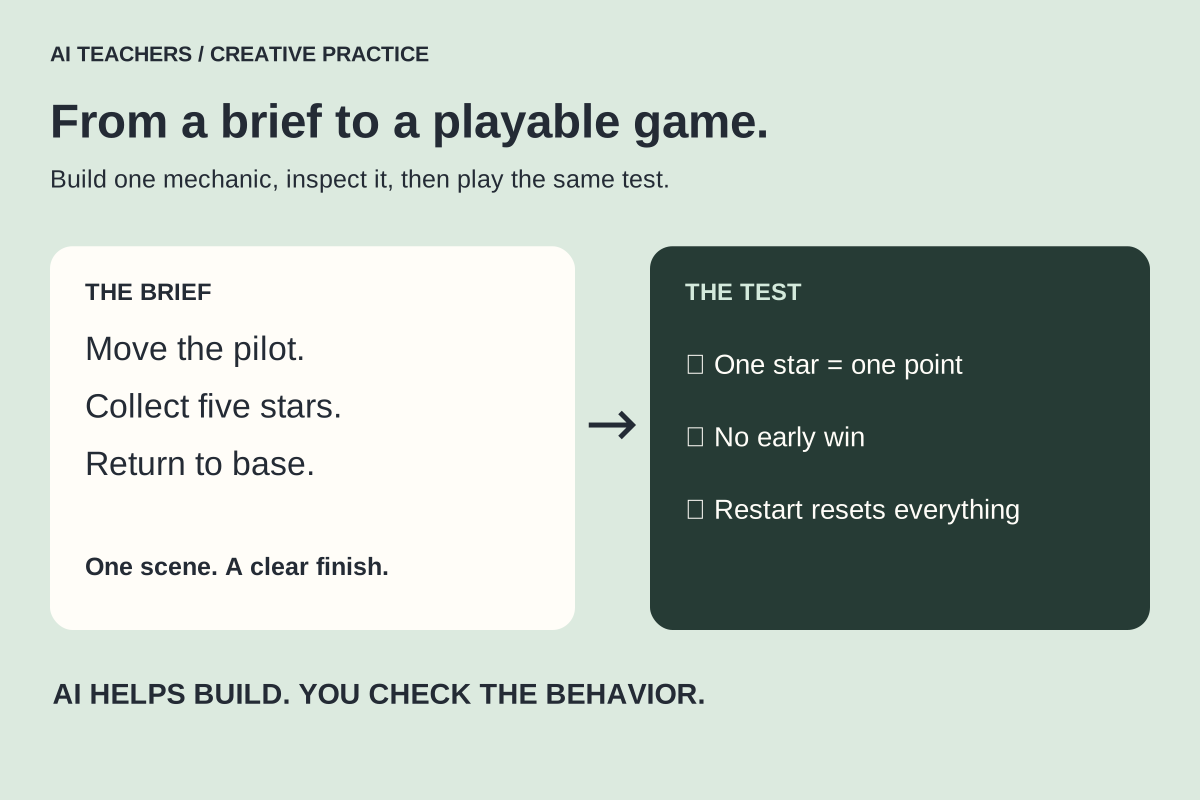 Creative projects · Practical guide
Create games with AI: a first playable project you can explain
Choose an engine, write a small game brief, build one mechanic at a time and test what the assistant changes.
October 29, 2026 · 7 min read