Creative projects · Practical guide
Create games with AI: a first playable project you can explain
Choose an engine, write a small game brief, build one mechanic at a time and test what the assistant changes.
In this guide
- The useful starting point
- 1. Choose an engine for the learning goal
- 2. Write a brief that can be tested
- 3. Establish a working scene
- 4. Request one mechanic at a time
- 5. Debug with a reproducible example
- 6. Test a full round, then a second round
- 7. Make it yours and share deliberately
- Sources and further reading
The useful starting point
Start with one scene, one player and one clear win condition. Ask AI for small, reviewable changes, keep working copies and verify each behavior in the actual game.
AI can help you turn a game idea into a prototype, especially when you can describe exactly what the player should be able to do. It can also produce a large project that looks convincing and fails on the second round. A small, tested game is a better first finish line than a long feature list.
This guide is for adult beginners and educators supporting older students. Choose an eligible account setup and a device you already have. You will make an original one-screen delivery game, practice reading its rules and keep evidence that it works.
1. Choose an engine for the learning goal
| Tool | Good starting point | Where AI fits |
|---|---|---|
| Scratch | A first blocks project with events, loops and variables | An eligible adult-operated assistant can help explain a bug; AI is not required |
| GDevelop | Visual game events with more room for levels and behaviors | Built-in AI can help edit and explain project objects and events |
| Godot | Learners ready for scenes, nodes and text code | An appropriate coding assistant can help explain GDScript; the creator must check APIs and run the game |
| GM2Godot | Migrating an existing editable GameMaker project | A conversion tool with optional AI extension; it is a separate advanced migration task |
For this first AI-assisted build, we recommend GDevelop because the resulting visual events can be inspected directly. It is our choice for this exercise, not a universal ranking. Check current AI credits, plan limits and education options before committing. Use the core event editor when AI is unavailable.
2. Write a brief that can be tested
Project: Star Courier, an original one-screen 2D game.
Player: a pilot controlled by arrow keys.
Goal: collect five stars, then touch the base to win.
State: StarsCollected starts at 0; Delivered starts false.
Feedback: visible star count and a clear delivery message.
After winning: stop movement; R restarts a fresh round.
Scope: one scene, simple original shapes, no timer or enemies.
Keep the player inside the screen. No account system or purchases.
Build only the next behavior I approve and explain its events.
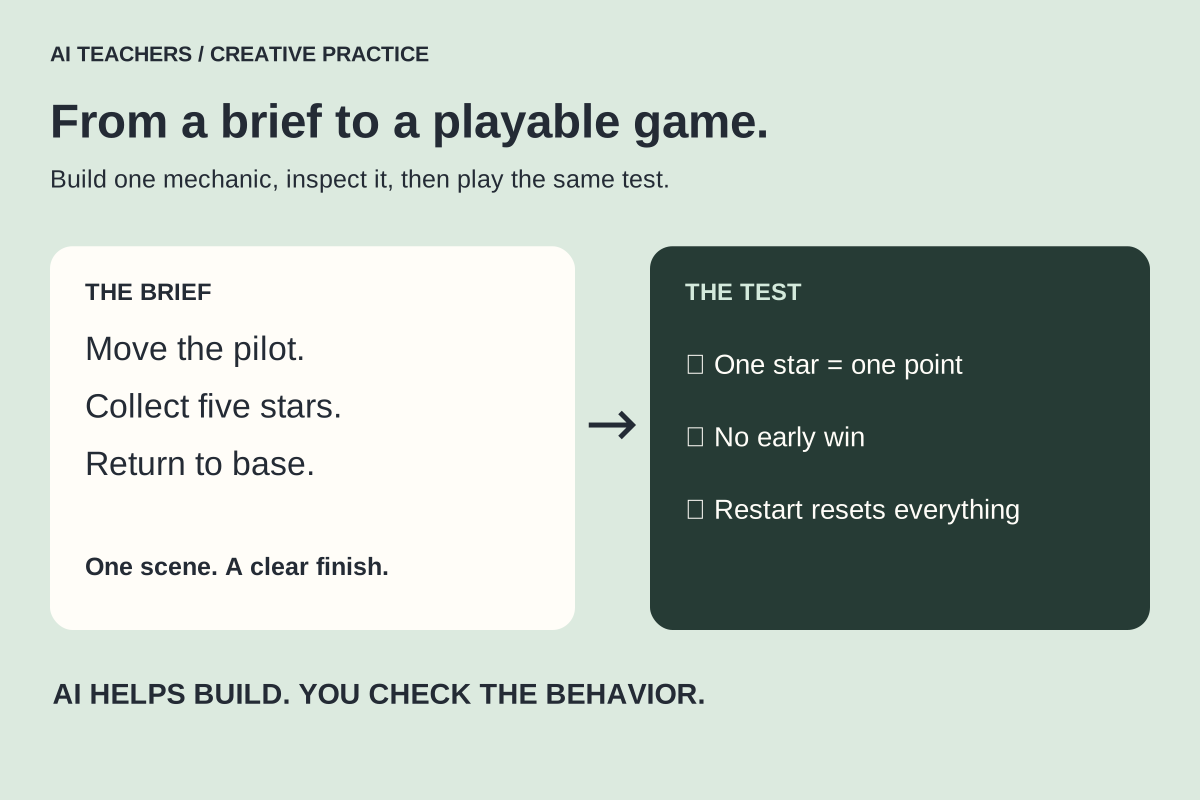
Write three acceptance checks before generating anything: a star counts once, the base does not trigger an early win, and restart restores all five stars. These checks turn a vague request into an engineering task. Keep them visible while you build.
3. Establish a working scene
Create a blank 2D project with one scene, Delivery. Draw a Pilot, a Star and a Base as Sprite objects. Place one pilot, five spaced star instances and one base. Add ScoreText and MessageText text objects. Create the two scene variables from your brief. Give Pilot a Top-Down Movement behavior and preview the arrow controls.
Save this version before using AI. If movement already fails, fix it now. Testing several new systems at once makes errors harder to isolate. Ask the assistant for a plan before accepting changes, and use the current Ask AI controls documented by GDevelop to review its proposed work.
4. Request one mechanic at a time
Start with collecting. A Pilot–Star collision should increase StarsCollected by one and delete that star instance. Update the display from the same variable. Next, add delivery: reaching Base with five stars and Delivered still false sets Delivered true, shows the win message and stops movement. Finally add restart and screen boundaries.
Implement only star collection in Delivery.
Use Pilot, Star, ScoreText and StarsCollected as already defined.
Each collided star adds exactly one point and disappears.
Do not change movement or create another score variable.
Explain which events you changed and how I can verify the result.
After each request, inspect the events before making another. Name the condition, the action and the variable involved. AI-assisted development does not mean the game itself uses machine learning: this collector follows rules you define.
5. Debug with a reproducible example
Suppose collecting one star adds two points. First check for two overlapping stars or duplicate collision events. Record the actual result and the smallest relevant event group. Ask the assistant to explain possible causes, then test one change. Keep the previous working copy until the new behavior passes.
Expected: touching one star adds one point.
Actual: [describe the observed result and when it happens].
Relevant events: [small excerpt or permitted screenshot].
List the most likely causes, then propose one small change.
Explain why it should work and give me a repeatable test.
Do not rewrite unrelated parts of the project.
If an assistant refers to a missing action or old API, compare its answer with the current engine documentation. Repeatedly regenerating the whole project hides the cause and can remove your own improvements.
6. Test a full round, then a second round
- Hold each direction at all four boundaries; the player stays visible.
- Touch the base with zero and four stars; the game continues.
- Collect one star and wait; the count increases only once.
- Collect five and return to base; victory appears once.
- After victory, movement and collection stop.
- Restart resets the score, player, stars and messages.
- Repeat the complete sequence to catch stale state.
Keep a simple table of expected result, actual result and repair. Have somebody else try the game without coaching. A short controls label and clear feedback often improve a first prototype more than another visual effect. Add touch controls only if mobile play is part of your chosen scope, then test on an actual touch device.
7. Make it yours and share deliberately
Choose one personal contribution: a new delivery rule, an original setting or a different level layout. Explain how it changes play and retest the affected rules. Record the assets you made or have permission to use and where AI helped. Review the project before sharing publicly, and follow the platform’s current account and publishing requirements.
For the complete student-facing build, use CodeTeachers’ GDevelop tutorial. Explore a new design with our game mashup workshop. If you already own an editable GameMaker game, the GM2Godot tutorial covers migration, reports and comparison testing as a separate next project.
Sources and further reading
- GDevelop: AI assistant documentation
- GDevelop: collectible objects and score
- GDevelop plans
- GM2Godot: purpose and compatibility
- Godot official learning path
Sources checked October 29, 2026. Review the linked publisher information for current details.
Put one idea to work
Use one lesson in a small project, explain what you learned, and practice again without relying on the answer.
Try the free workshop →Explore more from AI TeachersGet the free AI at Work Starter Kit →Keep practicing
 Creative projects · Practical guide
Game mashups with AI: turn two mechanics into one playable idea
A practical workshop for combining game rules, building a small prototype and using playtests to decide what belongs.
October 29, 2026 · 7 min read Creative projects · Practical guide
Make colorful music videos with AI: lessons from the Hey Bear format
Plan an original 30-second animation with simple characters, gentle motion and music, using AI images, short video clips and a timeline editor.
October 29, 2026 · 8 min read