Give AI a bounded assignment, supply the inputs, and check the result before using it.
Start with a useful result
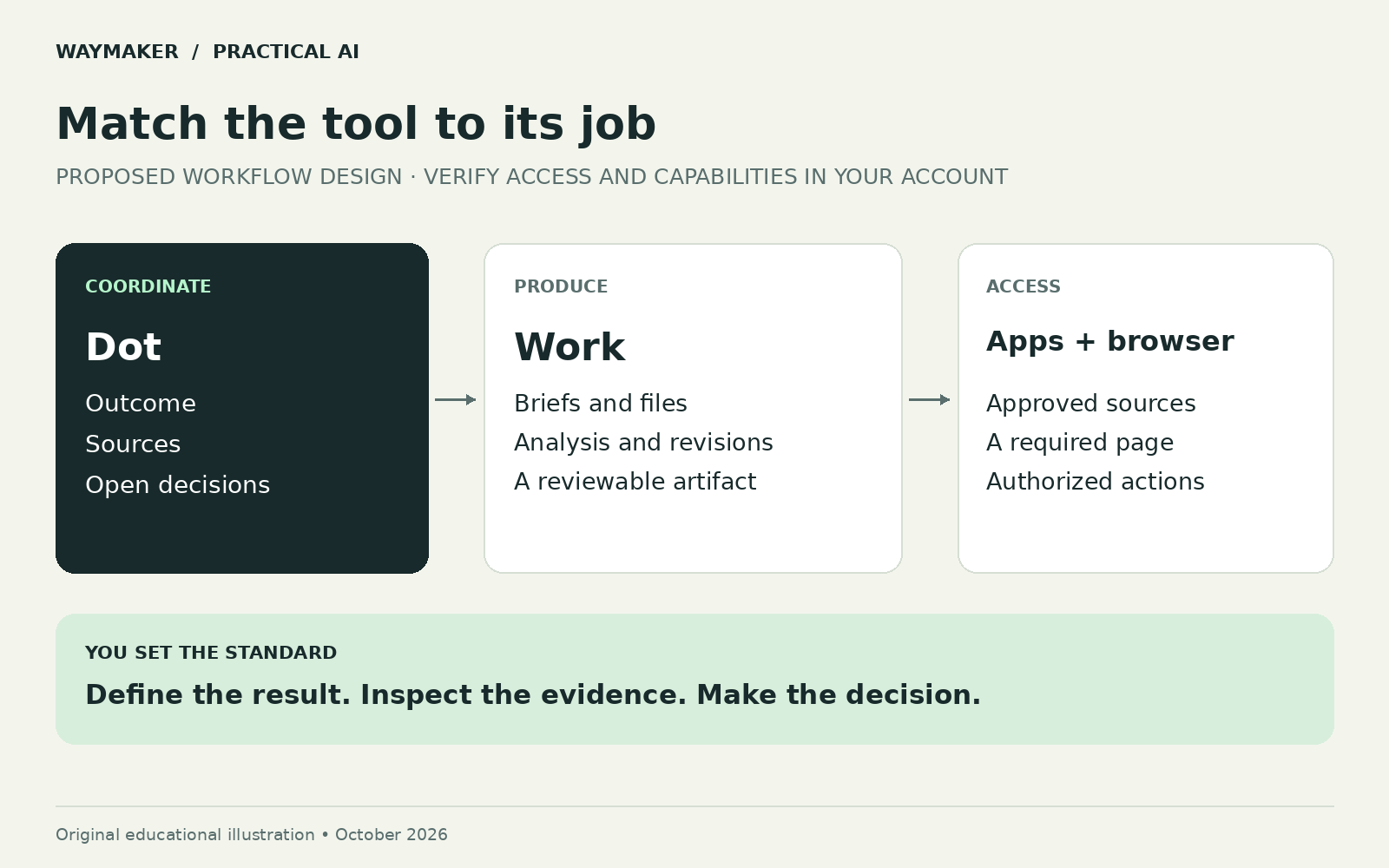
Use this companion to choose where a task runs and what you need to connect. Product facts below are based on official documentation checked on October 22, 2026. The proposed responsibilities are our recommended design; they are not built-in role names or a claim that this full workflow has been tested.
A practical division of responsibilities
| Part | Role in this proposed workflow | What you must provide |
|---|---|---|
| Dot | Track the outcome and coordinate follow-through | A bounded responsibility, source links, and decision rules |
| ChatGPT Work | Produce and revise a specific deliverable | Input files and a definition of acceptable output |
| Connected app | Read or update a supported service | The correct account and authorized actions |
| Browser extension | Inspect or act on a needed signed-in webpage | A supported browser connection and site permission |
| Coding agent | Implement a scoped software change | Repository, environment, checks, and review expectations |
| You | Choose the goal and judge consequential decisions | Context and time for review |
Start with Work
Open a Work task, provide the source materials, and ask for a named output. Work can use available files, plugins, and approved tools to create deliverables. Review the actual file and request specific changes. Tool access depends on your environment. Get started with ChatGPT Work.
Add Dot when follow-through has value
Dot is designed to maintain ongoing responsibilities and coordinate work between conversations. Access is rolling out to eligible accounts. Give it a specific outcome and tell it when you want updates. Meet dots.
For a fixed recurring task, specify the time zone, frequency, sources, and delivery destination; inspect the saved schedule. Event monitoring requires support from the connected service. A new task does not automatically receive your entire conversation history. Dot tasks and memory.
Connect the browser only for a needed step
In the current desktop app, open Settings, then Computer Use. Choose the browser, install the official extension through its store link, and check that the connection shows Manage. In a Work or Codex task, select the browser through an @-mention. Chrome, Edge, Brave, Opera, and Vivaldi are documented; Opera lacks side chat. Availability depends on rollout and workspace settings. ChatGPT browser extension.
Try a read-only first task: “Inspect this page and list three places where a new visitor may be unsure what to do. Reference visible text. Do not submit forms or make changes.” A useful integration may handle structured work more directly than page clicking.
Know which computer must stay online
Dot’s cloud computer can work without your device. Its browser has separate sessions. If a task needs your connected computer, keep it online with the ChatGPT app open. Changing computers does not automatically move an existing task. Dot computers and apps; Dot tasks and memory.
Use Grok Bot as an alternative coordination setup
Grok Bot supports durable Bots, reusable skills, and routines. Bots within an account share computer resources; a separate name does not create a separate security environment. Model selection is managed by the platform. Work with Grok Bot; Grok Bot for Teams and Enterprise.
For a small pilot, use one coordinator and explicit task records. Add specialist roles only when a distinct job or context makes the separation useful. If a coding task is delegated, provide the reproduction evidence and acceptance criteria as a complete handoff.
Configure coding separately
Cursor Cloud Agents run in isolated development environments. A code task needs dependencies, relevant configuration, and checks that can execute there. Do not assume it inherits another agent’s files or credentials. Cursor Cloud Agents.
This guide does not depend on a guaranteed Opus backend or repeat the source article’s model announcement as an implementation requirement. Verify any model-specific need in the chosen product before making it part of your workflow.
A reusable assignment card
RESULT: The artifact or change I need.
AUDIENCE: Who will use it and why.
INPUTS: Exact files, URLs, records, and dates.
SCOPE: What this task includes.
ACCESS: Connected tools and permitted actions.
CHECKS: How we will decide whether the result is usable.
HANDOFF: File location, evidence, open questions, next decision.
STOP CONDITION: Missing access, repeated failure, or a decision outside scope.
Keep a prompt boundary and an actual permission boundary aligned. For the first pilot, authorize preparation and review while retaining control of publishing, spending, and production changes. Expand access only for a specific workflow you understand.
Prompts to put it into practice
Replace the brackets with your context. Use information you have permission to share.
A clear first assignment
Use [approved input] to create [deliverable] for [audience]. Include [requirements]. Mark missing information. Return a draft and a short list of checks I should make.
Try it on your work
Choose one task, run it once, and record preparation, review, and correction time.
Check the result
- The output matches the assignment.
- Names, dates, numbers, and links match the source.
- Missing facts remain visible.