AI browser workflows
Teach a useful AI skill: read three tabs, check the answer, explain the choice
A practical browser-based AI lesson with five illustrated steps, ready-to-use prompts, a fictional pricing exercise, and a simple assessment of independent source checking.

In this guide
- The useful starting point
- Design the lesson around an observable skill
- Before you begin: connect the browser you actually mean
- Step 1 — Open side chat beside one public page
- Step 2 — Name the three tabs and the decision
- Step 3 — Check the answer against the original pages
- Worked example: the headline price is not the team cost
- Step 4 — Review the tab list, then group only those tabs
- Step 5 — Finish with a recommendation and one open question
- Try the same method on a single article
- Your finished-work checklist
- Put this into practice
- Questions you might be asking
- Sources and further reading
The useful starting point
Choose three relevant public pages, state the decision criteria, verify the comparison, and keep a short source-linked recommendation. Group the reviewed tabs in Work only where that action is available.
The most valuable moment in an AI lesson may be the moment a learner says, “That answer needs checking.” Comparing a small set of browser tabs gives beginners a manageable way to practice giving context, checking evidence, and explaining a choice. The exercise ends with a decision they can defend.
Design the lesson around an observable skill
Use public practice material and a fresh browser profile. Begin with a short demonstration, then let learners perform the comparison themselves. Ask them to point to the source for one claim, correct one mistaken calculation, and identify one unanswered question. The aim is independent judgment, so a polished AI response by itself does not count as successful practice.
Before you begin: connect the browser you actually mean
OpenAI documents a browser extension that can use open tabs and provide side chat. In the desktop setup, open Settings → Computer Use, choose your browser, and follow its installation flow. That route points you to the appropriate extension. Use the profile where you installed it. Availability and controls depend on your account, app version, and workspace settings.
This guide uses a public-page practice task. The cover is AI-generated editorial imagery; the five step graphics are conceptual illustrations, not screenshots of an actual ChatGPT session. Allow about 20 minutes for a first attempt; that is a suggested practice time, not a measured result.
Step 1 — Open side chat beside one public page
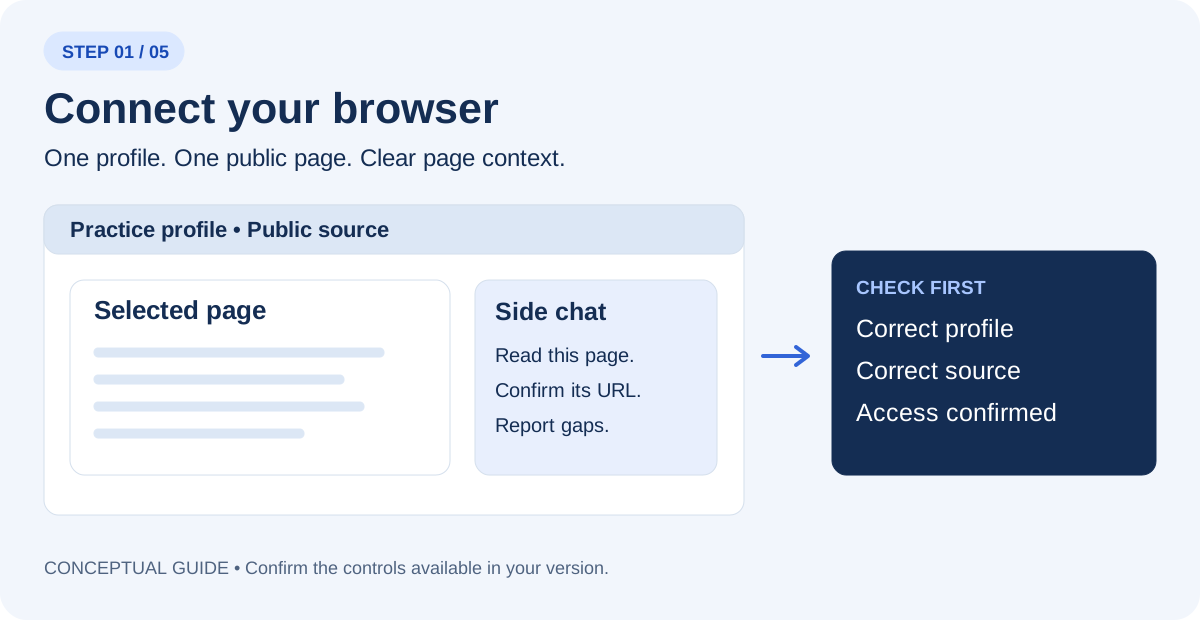
Open one of your sources and select ChatGPT from the browser toolbar or Extensions menu. Use the tab mention or page-context control your version provides. Begin in Chat for reading where available. If the panel cannot see the page, confirm the correct profile and connection before continuing.
Read only the page I selected. Tell me its title and URL, what information you can actually access, and anything you cannot verify. Do not change the page.
Step 2 — Name the three tabs and the decision
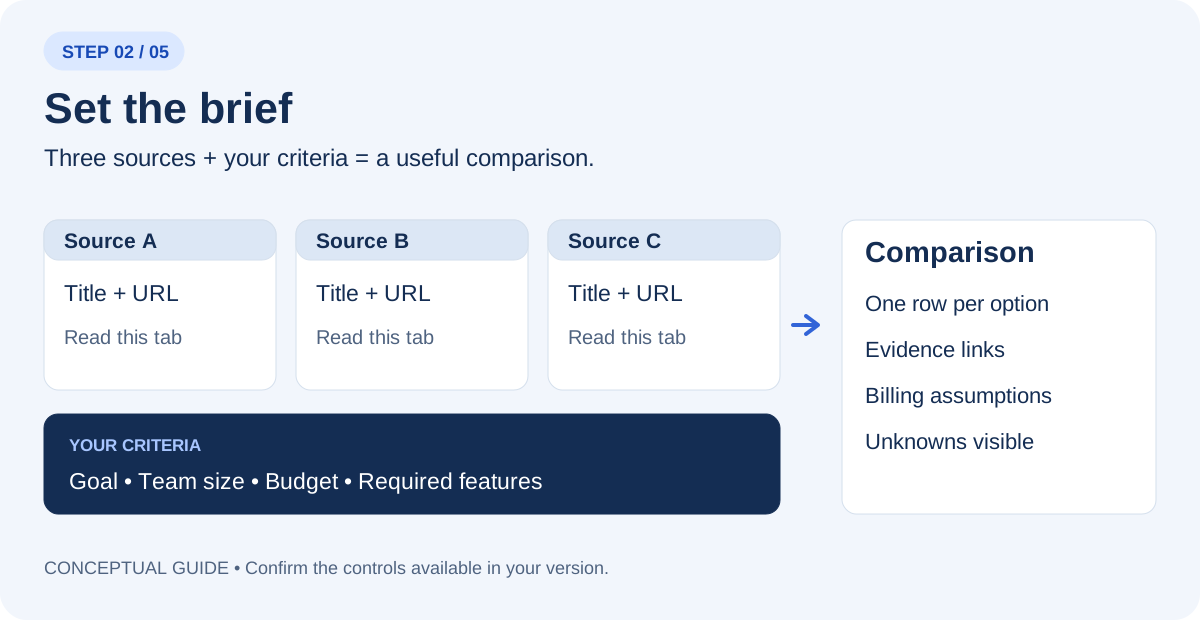
Open three public learning-platform pricing pages or instructor-prepared fictional plan pages. Select or mention each tab explicitly. Replace the placeholders in this prompt with the actual page titles or URLs. A list of links is not proof that ChatGPT has read every page; ask it to identify any failed or partial reads.
Use only these three tabs: [title and URL 1], [title and URL 2], [title and URL 3]. My task: Compare three learning-platform pricing pages for a five-person teaching team, with a $75 monthly-equivalent budget and a requirement to export records. Explain the billing period and any missing information. Create a comparison with one row per option, the source URL for each important claim, and a separate column for missing information. Use “not verified” when a page does not establish a detail. Do not start trials, buy, register, or send messages.
Step 3 — Check the answer against the original pages
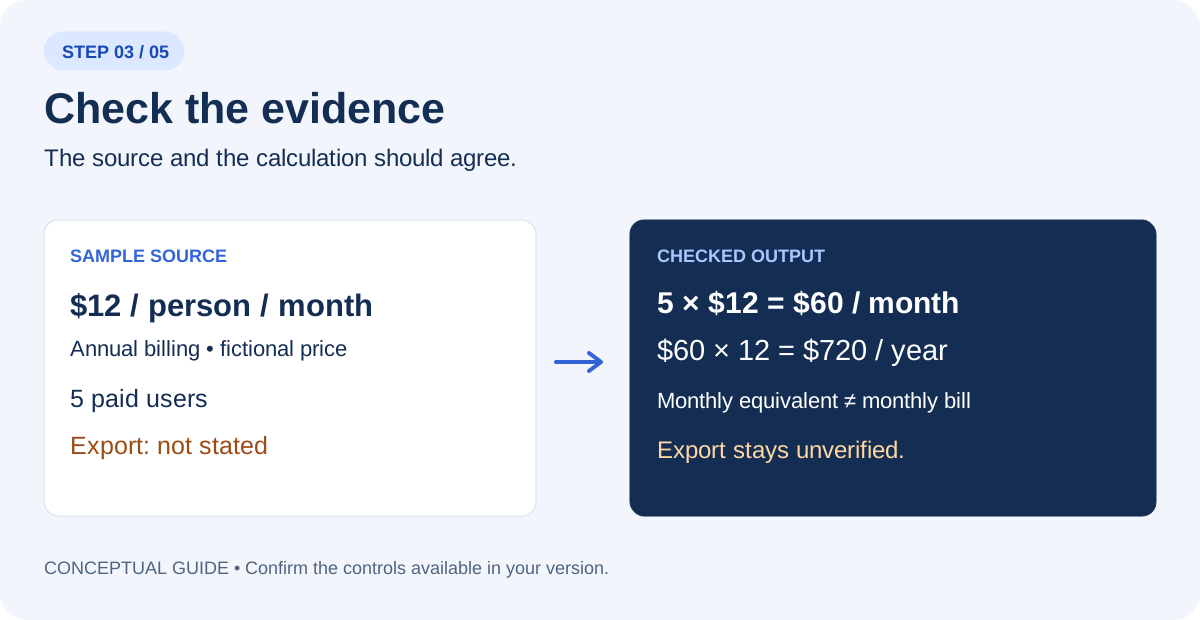
Open the source behind each decision-changing claim. Separate a visible statement from AI’s interpretation. For prices, check currency, billing period, paid-seat count, minimum seats, required add-ons, and any tax or fee exclusions. For events, check date, time zone, venue, and registration status. Do not convert a blank field into a favorable assumption.
Audit your comparison against the three source pages. For each important claim, show the supporting page and explain the calculation or inference. Mark contradictions and missing details. List what I must confirm before making the decision.
Worked example: the headline price is not the team cost
Illustrative exercise: fictional plans and prices, not current vendor quotes. Five people need task ownership, due dates, and exportable records. The limit is $75 per month on an annual-equivalent basis. Assume the sample rates below require annual billing and all five people need paid seats. Taxes and add-ons are excluded.
| Fictional plan | Per person / month, annual billing | 5-person monthly equivalent | Annual commitment | Open question |
|---|---|---|---|---|
| Plan A | $12 | $60 | $720 | Export format not stated |
| Plan B | $15 | $75 | $900 | Guest seat rules not stated |
| Plan C | $25 | $125 | $1,500 | Over the example budget |
Show the arithmetic: 5 × $12 × 12 = $720 per year. A $12 headline is not the team price, and $60 per month as an annual equivalent does not mean a $60 monthly invoice is available. If the page requires a six-seat minimum, Plan A becomes $72 per month equivalent and $864 per year. Ask about minimums before calling the first number complete.
Example decision note: Plan A is the first option to investigate because its stated annual-equivalent cost is below the budget. Export is a required feature, so it is not yet an approved choice. Plan B uses the entire budget before tax or add-ons. Plan C exceeds it. Next question: does Plan A include a usable export on this exact tier?
Instructor variation: deliberately give learners a draft that calls Plan A “$12 per month for the team.” Ask them to locate and correct the error. Then change the team to six people and have them recalculate independently. Use the fictional plan labels as sample sources; replace them with actual source URLs when using real pages.
Step 4 — Review the tab list, then group only those tabs
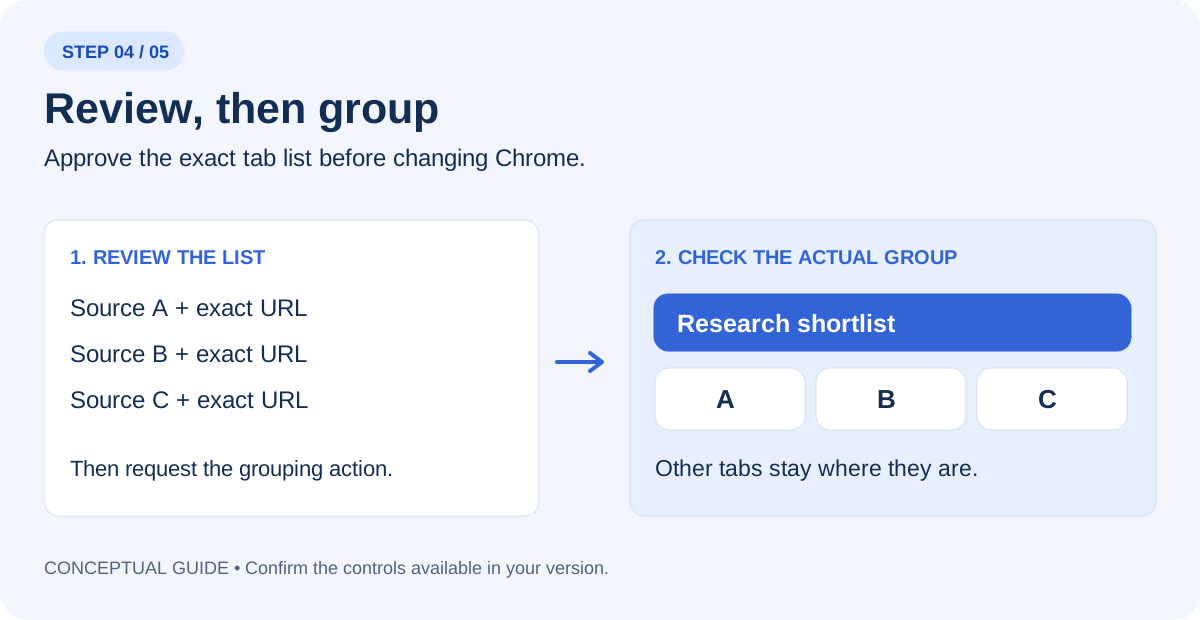
If browser actions and tab grouping are available in Work, select that mode and name Chrome explicitly. Reading pages and changing the browser are separate tasks. First ask for a preview of the three tab titles and URLs. After you check the list, request the grouping action below. Inspect the actual Chrome group afterward.
In Chrome, show me the exact three tab titles and URLs you would group as “Class practice sources”. Do not change the browser yet.
Group only those three reviewed tabs as “Class practice sources”. Leave the other tabs where they are. Do not close pages, navigate to checkout, register, or send anything. Report the group name and the tabs actually included.
If grouping is unavailable, create the group manually in Chrome and keep the comparison. A useful research result does not depend on this optional action. If the extension fails to connect, use OpenAI’s linked troubleshooting guidance; do not grant wider access just to complete a practice exercise.
Step 5 — Finish with a recommendation and one open question
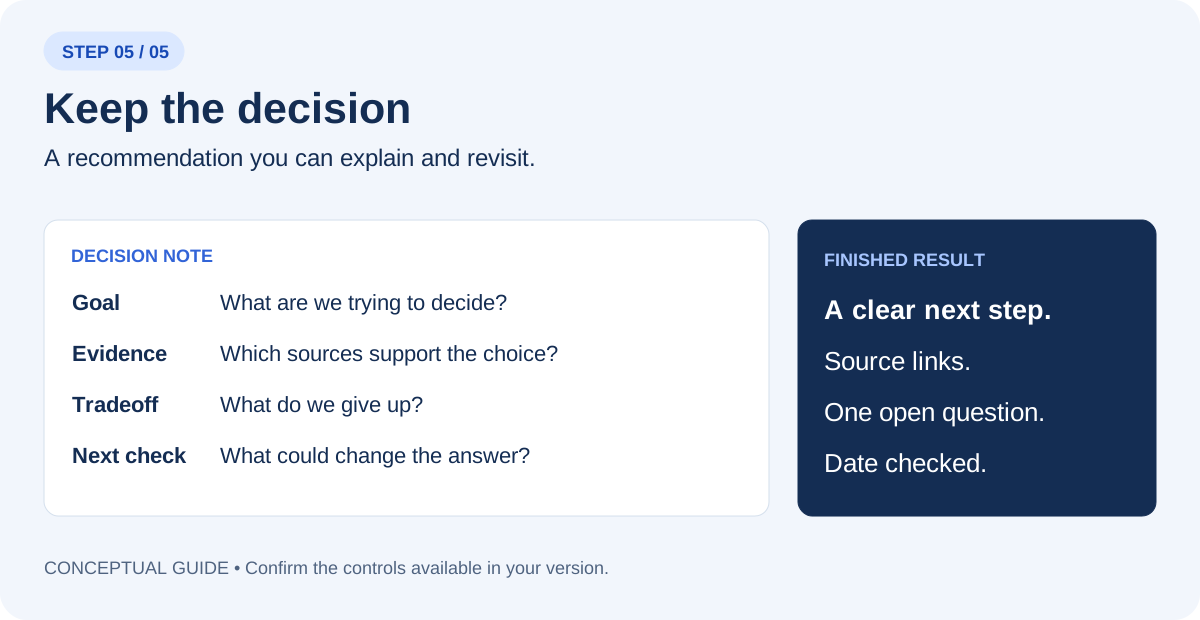
Write a decision note under 150 words: the goal, the best-supported next step, the source links, the main tradeoff, and one unanswered question that could change the recommendation. Distinguish facts, calculations, and your judgment. If the evidence is insufficient, recommend the next check instead of choosing a winner.
For the independent attempt, change a requirement: add a sixth user or require monthly billing. Ask the learner to update the recommendation and explain why it changed. Assess source selection, arithmetic, uncertainty, and the ability to stop before an unnecessary action. Record what needed help so the next lesson addresses an actual gap.
Try the same method on a single article
Select the article tab and ask for a short evidence review. This is useful when a headline makes a broad promise but the body describes a narrow example.
What is the main claim in this article? What evidence does the author present? Which statements are interpretation, which details remain unresolved, and what original source would I need to inspect before relying on the claim? Include the article URL.
Your finished-work checklist
- The comparison uses the three sources you selected.
- Decision-changing claims link back to an accessible page.
- Costs and dates use the correct assumptions.
- Missing information remains visible.
- The actual tab group matches the reviewed list, if grouping was used.
- The final note names a next step and one question.
Save the note with the date checked. When a price, policy, or event changes, revisit the original page before reusing the recommendation.
Put this into practice
Practice on a real task with guided feedback, then leave with a process you can repeat on your own.
Questions you might be asking
Is the extension the same as the cloud browser?
No. Use the connected browser extension when the task depends on your existing Chrome tabs. Name Chrome and the selected tabs explicitly.
What if my account cannot group tabs?
Complete the comparison and create the tab group manually. The group is optional; source checking is the essential skill.
Sources and further reading
Sources checked November 11, 2026. Review the linked publisher information for current details.
Put one idea to work
Practice on a real task with guided feedback, then leave with a process you can repeat on your own.
Bring your task to an AI Working Session →Explore more from AI TeachersGet the free AI at Work Starter Kit →Keep practicing
 Agent-friendly websites
Agent-Friendly Website Lesson: llms.txt and Task Testing
A hands-on lesson plan for llms.txt, accessible pages and public APIs, including a fictional site, a six-step exercise and an assessment rubric.
November 11, 2026 · 8 min read Practical AI workflows
Teach Claude Sheets and Whiteboards through one useful exercise
A hands-on lesson that ends with a checked budget, a shared plan and an independent learner attempt.
November 11, 2026 · 7 min read